The Planning Center Integration module provides two-way data synchronization between the Church Management Platform and Planning Center Online (PCO) — one of the most widely-used church management platforms. This allows your church to adopt the Church Management Platform as a complete replacement for PCO while maintaining data synchronization during the transition period, or to run both systems in parallel long-term.
pco.manage permission, which grants full access to trigger sync/push operations, configure webhooks, and manage the integration.
The PCO Sync page is located in the Configuration sidebar section, visible to users with the pco.manage permission. The TECH_ADMIN role includes this permission by default. No sync configuration requires code changes; everything is managed through the admin interface and application settings.
About PCO Integration
Planning Center Online is a suite of church management tools covering people, groups, check-ins, giving, and services. Many churches have years of data in PCO. This integration module bridges the gap by enabling bidirectional data flow between the two systems.
Key Capabilities
Inbound Sync (Pull)
Import people, families, and groups from PCO into the Church Management Platform. Keeps your local database up to date with PCO records.
Outbound Sync (Push)
Push locally-created people, families, and group memberships back to PCO. Ensures changes made here are reflected in PCO.
Real-Time Webhooks
Receive instant notifications from PCO when records change, enabling near-real-time synchronization without manual intervention.
No Code Changes
All sync configuration is done through admin settings and the sync page. Different churches connect their own PCO accounts with zero code modifications.
Data Flow
People, Families, Groups
Match, Merge, Track
Local Database
What Syncs
The integration covers the three core data domains that most churches need synchronized between systems.
Inbound (Pull from PCO)
| Data Type | What Is Imported | Matching Strategy |
|---|---|---|
| People | Demographics (name, gender, birthdate, status), email addresses, phone numbers | Match by PCO ID, then by email, then by name + date of birth |
| Families | Households, family members, family addresses | Match by PCO household ID; members linked by person match |
| Groups | Groups with memberships, auto-created under a "PCO Groups" department | Match by PCO group ID |
Outbound (Push to PCO)
| Data Type | What Is Pushed | Details |
|---|---|---|
| People | Create or update person records in PCO, including email addresses, phone numbers, and addresses | Saves the PCO ID back to the local database for future matching |
| Families | Create or update PCO Households, add household memberships, push family address to the primary member in PCO | Family members must already exist in PCO (push People first) |
| Group Memberships | Create group memberships in PCO for groups that have a PCO ID | Only groups previously synced from PCO (or manually linked) are included; duplicates are handled gracefully |
Real-Time Webhooks
PCO can be configured to send webhook notifications whenever records are created, updated, or deleted. When enabled, the Church Management Platform receives these notifications and processes them automatically, keeping your local data synchronized without needing to run manual sync operations.
- Webhook payloads are verified using HMAC-SHA256 signature validation to ensure they originate from PCO
- Webhook processing uses the same matching and merge logic as the inbound pull sync
- Requires webhook configuration in your PCO admin panel (see Webhooks section below)
Sync Page Admin
The PCO Sync page is the central admin interface for managing all synchronization operations. It is accessible from the sidebar under the admin menu. The page is organized into several sections, each described in detail below.
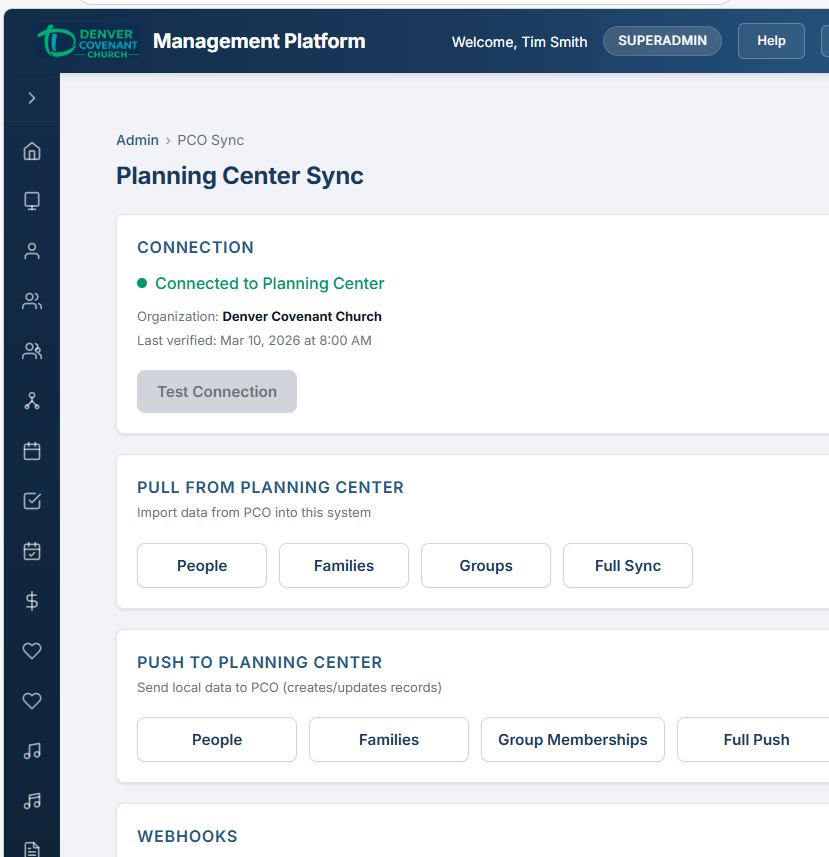
The PCO Sync page showing connection status, sync/push buttons, progress indicator, and sync history.
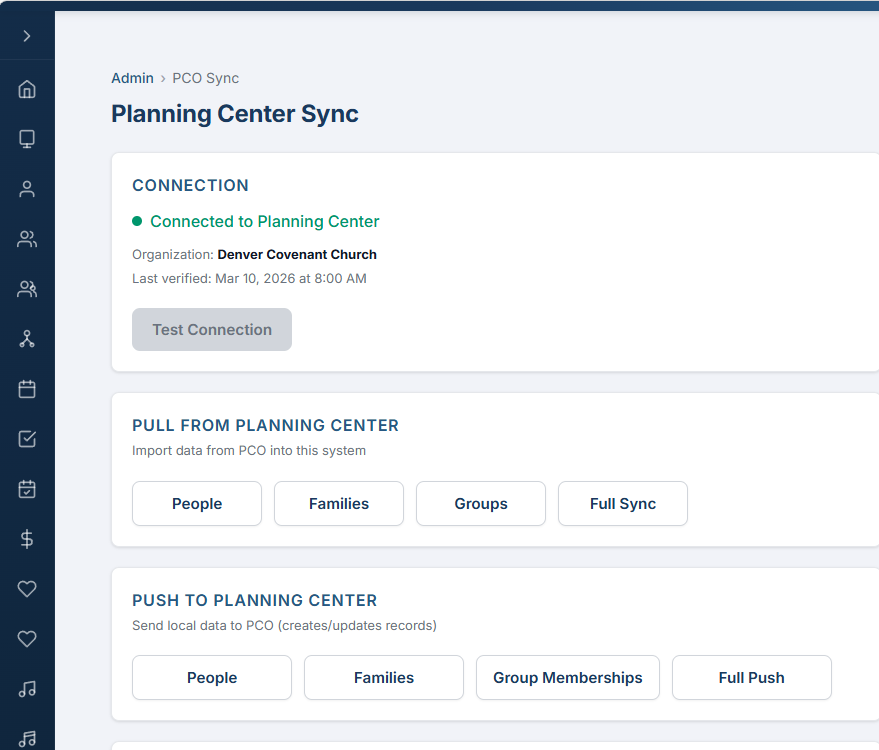
The PCO connection card — credential status indicators and Test Connection button.
Connection Card
At the top of the sync page, a connection card shows the current PCO configuration status:
- App ID — indicates whether a PCO App ID has been configured in application settings
- Secret — indicates whether a PCO Secret has been configured
- Test Connection button — sends a test request to the PCO API to verify that credentials are valid and the connection is working
Progress Indicator
While a sync operation is running, the page displays a live progress indicator with:
- A spinner animation showing the sync is active
- Created / Updated / Skipped counters that update in real time
- Progress is polled automatically every 3 seconds until the sync completes or fails
All sync buttons are disabled while an operation is running to prevent concurrent syncs from interfering with each other.
Pull from PCO Admin
The Pull section provides four buttons to import data from Planning Center into the Church Management Platform.
Sync Buttons
| Button | What It Does |
|---|---|
| Sync People | Streams all people from PCO, matches them against local records (by PCO ID, email, or name + DOB), and creates or updates person records including email addresses and phone numbers |
| Sync Families | Streams all households from PCO, creates or updates family records, links family members, and imports household addresses |
| Sync Groups | Streams all groups from PCO, creates them under an auto-generated "PCO Groups" department, and syncs group memberships |
| Full Sync | Runs all three syncs in sequence: People, then Families, then Groups. Use this for a complete refresh of all PCO data |
Running a Pull Sync
- Navigate to PCO Sync from the admin sidebar menu.
- Verify the connection card shows valid credentials and use Test Connection if you have not already.
- In the Pull from PCO section, tap the sync button for the data type you want to import (or Full Sync for everything).
- The progress indicator appears with a spinner. Watch the Created / Updated / Skipped counters as records are processed.
- When complete, the progress indicator disappears and a summary entry is added to the Sync History table below.
Push to PCO Admin
The Push section sends locally-managed data back to Planning Center, ensuring that records created or updated in the Church Management Platform are reflected in PCO.
Push Buttons
| Button | What It Does |
|---|---|
| Push People | Loads all active people with their emails and phones, creates or updates them in PCO, saves the PCO ID back to the local database, and syncs contact information (emails, phones, addresses) |
| Push Families | Pushes families as PCO Households, creates household memberships for family members, and pushes the family address to the primary member's PCO record |
| Push Group Memberships | Creates group memberships in PCO for all local groups that have a PCO ID. Groups without a PCO ID are skipped. Duplicate memberships are handled gracefully |
| Full Push | Runs all three pushes in sequence: People, then Families, then Group Memberships |
Running a Push Sync
- Ensure your PCO connection is configured and tested.
- In the Push to PCO section, tap the push button for the data type you want to send (or Full Push for everything).
- The progress indicator shows the same Created / Updated / Skipped counters as pull operations.
- When complete, a summary entry is added to the Sync History table.
Webhooks Admin
Webhooks enable real-time synchronization by having PCO send notifications to the Church Management Platform whenever records change. Instead of manually running sync operations, changes flow automatically.
Webhook URL
The sync page displays your webhook endpoint URL. This is the URL you will enter in the PCO admin panel when setting up webhooks. The URL follows the format:
Setting Up Webhooks in PCO
- Log in to your Planning Center account and navigate to the Developer settings page.
- Locate the Webhooks section and create a new webhook subscription.
- Enter the webhook URL shown on the sync page as the delivery URL.
- Select the event types you want to receive notifications for (e.g., person created, person updated, household changed).
- Copy the webhook secret provided by PCO and add it to your application settings (see Configuration).
- Save the webhook configuration in PCO. Test it by making a small change to a PCO record and verifying the sync page reflects the update.
Sync History Admin
The bottom of the sync page displays a history table showing the most recent sync operations. This provides an audit trail of all synchronization activity.
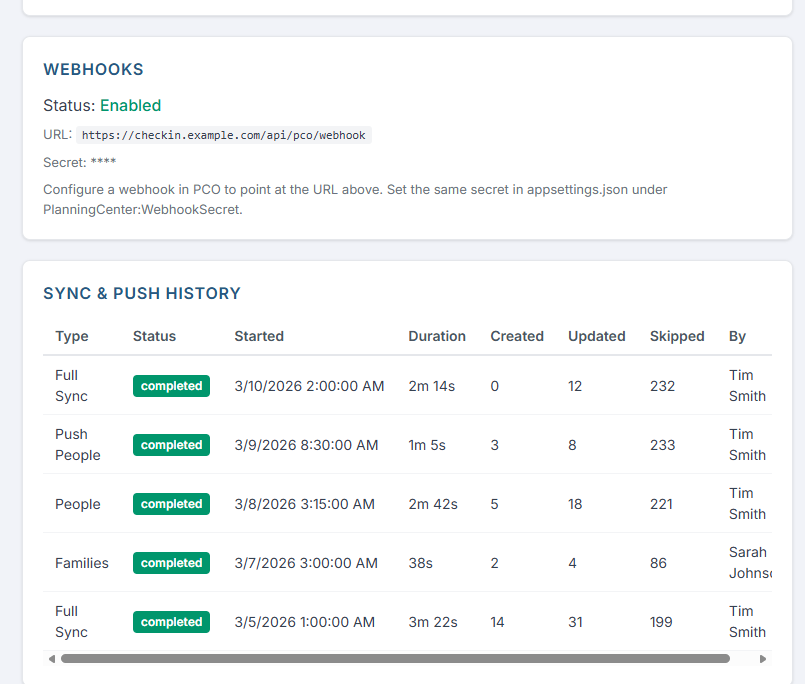
The Sync History table — recent operations with type, status, duration, and record counts.
History Table Columns
| Column | Description |
|---|---|
| Type | The kind of sync that was run (e.g., People, Families, Groups, Full Sync, Push People, Push Families, Push Group Memberships, Full Push) |
| Status | The outcome of the sync, shown as a colored badge |
| Started | The date and time the sync operation began |
| Duration | How long the sync took to complete |
| Created | The number of new records created during this sync |
| Updated | The number of existing records updated during this sync |
| Skipped | The number of records that did not need changes (already up to date) |
| By | The admin user who initiated the sync operation |
Status Badges
Each sync history entry displays one of four status badges:
- COMPLETED — The sync finished successfully with no errors
- FAILED — The sync encountered an error and did not finish. Check connection settings and try again
- RUNNING — The sync is currently in progress
- CANCELLED — The sync was stopped before completion
The history table shows the last 20 sync runs, ordered from most recent to oldest. Older entries are retained in the database but not displayed on this page.
Configuration Admin
The PCO integration requires credentials and optional webhook settings to be configured in the application settings file. These are set once per church deployment.
Required Settings
| Setting | Description |
|---|---|
PlanningCenter:AppId |
Your Planning Center application ID. Obtained by creating a Personal Access Token in the PCO Developer portal |
PlanningCenter:Secret |
Your Planning Center application secret. Paired with the App ID for authentication |
Optional Settings
| Setting | Description |
|---|---|
PlanningCenter:WebhookSecret |
The HMAC-SHA256 secret used to verify incoming webhook payloads from PCO. Required only if you enable webhooks |
Per-Church Configuration
Each church deployment connects to its own PCO account. The credentials are stored in the application settings file on the server. When deploying for a new church:
- Have the church's PCO admin create a Personal Access Token in the PCO Developer portal.
- Enter the App ID and Secret from the token into the application settings.
- Deploy or restart the application so the new settings take effect.
- On the PCO Sync page, use Test Connection to verify the credentials work.
- If webhooks are desired, set up the webhook in PCO and add the WebhookSecret to the application settings.
Technical Reference
For developers, DBAs, and technical staff who need the complete implementation details — API endpoint mappings, entity field mappings, rate limiting behavior, pagination strategy, and architecture — refer to the full technical reference document below.
Complete technical documentation covering REST API endpoints, JSON:API data models, entity mapping tables, rate limiting and pagination strategies, HMAC webhook verification, two-way sync architecture, and PcoApiClient / PcoSyncService / PcoPushService implementation details.
Technical